IPTV for iPhone in the UK: Apps, Setup and Screen Mirroring
Your iPhone may already be the easiest device in your home for watching IPTV. You do not need to install APK files, unlock developer settings, or buy extra hardware. Download a compatible player from the Apple App Store, add the M3U playlist or Xtream Codes details supplied by your provider, and your available channels and on demand library can load inside the app. Remember that an IPTV player does not include television content on its own, so you still need valid access from an authorised provider.
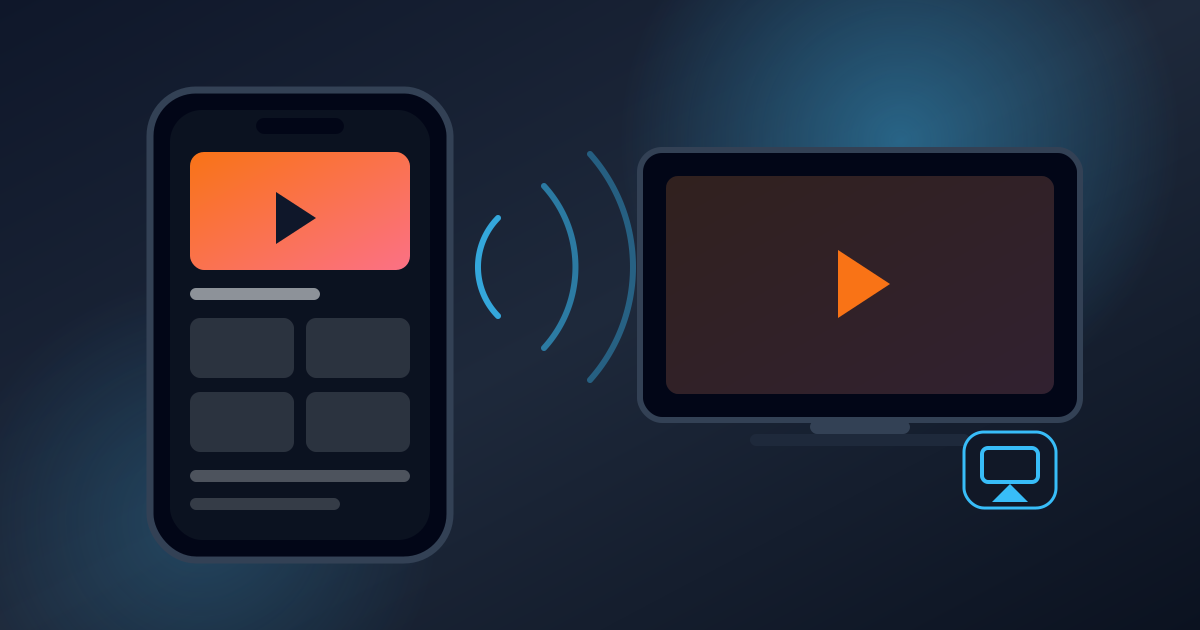
Smarters IPTV Player currently supports iPhone, iPad, and Apple TV, requires iOS 14 or later, and offers a one week trial before device activation. GSE Smart IPTV Player supports M3U playlists, Xtream Codes, EPG data, VOD, and catch up viewing on iPhone and iPad. You can also send supported video to an Apple TV, compatible smart TV, or Mac through AirPlay when both devices use the same WiFi network.
This guide explains which iPhone IPTV apps are worth considering, how to add your account details, how to watch on a larger screen, and what to check when a stream fails to load.
Best IPTV Player Apps for iOS in the UK
App details last checked: 1 August 2026
Prices, ratings, compatibility, app sizes, and purchase terms may change. Check the latest information on the official UK App Store before downloading.
Not every iPhone IPTV player offers the same level of control. Some focus on a straightforward interface, while others are built for larger playlists, advanced network streams, recording, or detailed programme data. App identity also matters because the Apple App Store contains several players with similar names. Check the developer, compatibility requirements, purchase terms, and latest update before installing.
Smarters IPTV Player: A Beginner-Friendly Option
People often search for the app as IPTV Smarters Pro, but the current UK App Store listing is named Smarters IPTV Player and is published by SmartersPlayer LLC. It works on iPhone, iPad, and Apple TV and requires iOS 14, iPadOS 14, or tvOS 14 and later. The app is 72.6 MB and supports M3U playlist playback across Apple devices.
New users receive a one-week unrestricted trial, followed by a £14.99 device activation. Its App Store page currently shows a 4.6 rating from 209 reviews, while the developer states that the app does not collect user data. Smarters IPTV Player suits you when you value a familiar layout, broad Apple compatibility, and a simple activation model.
GSE Smart IPTV: An Option for Advanced Users
GSE Smart IPTV Player Live TV is developed by Animesh Sharma and provides more control over complex libraries. The 128.6 MB app supports M3U playlists, Xtream Codes API, multiple channel lists, EPG data, VOD, television series, films, and catch-up viewing.
Network support includes HTTP Live Streaming, MMS, RTSP, and Smooth Streaming, giving experienced users more flexibility when handling different stream formats. GSE is available for iPhone and iPad and currently holds a 4.4 rating from 930 App Store reviews. The download is free, but full access uses auto-renewing in-app subscriptions, so check the renewal terms through your Apple ID before paying.
Flex IPTV: Strong Playlist Management Features
Flex IPTV, published by artur tagirov, is a 48.9 MB player available for iPhone, iPad, and Apple TV. Its strongest tools centre on playlist management rather than a simplified home screen. You can add local or remote lists, enable automatic playlist updates, switch subtitles and audio tracks, adjust the video equaliser, and reconnect automatically when a source becomes unstable.
Flex IPTV also includes watched-channel history, favourites, XMLTV EPG support, and live-stream recording. The current UK listing is free with in-app purchases rather than a fixed one-off fee. Flex IPTV is better suited to viewers who want detailed playback controls and regularly manage changing playlist sources.
TiViMate on iPhone: The Honest Answer
As of 1 August 2026, TiViMate does not have an official listing for iPhone, iPad, or Apple TV in the UK App Store. The official service remains tied to its own player and Android-based account system. TiViMate Companion, which has more than one million Google Play downloads, is only used to unlock Premium features and manage activated devices. It cannot play channels, films, or television programmes on your phone.
You may still see iPhone apps using names such as "Tivimate," "TiviMato," or "Tivimax," but they come from unrelated developers. For example, one UK App Store listing called "Smarters player: Tivimate IPTV" is published by Said Saber, while Tivimax IPTV Player is published by AFIFA CHAUHDARY. Neither listing is the official TiViMate app. Check the developer name before downloading, paying for an upgrade, or entering your IPTV login details. An existing TiViMate purchase will not automatically unlock any of these iOS players. If you want TiViMate properly, you need an Android device — see our Android TV box guide.
How to Set Up IPTV on iPhone: Step by Step
Several apps use similar names, so a quick check can save you from installing the wrong one. Check compatibility of the app with your iPhone model and current iOS version.
- 1
Keep your login details ready
Open the WhatsApp message or email sent by your IPTV provider. You will normally receive either one M3U playlist link or three Xtream Codes details: server URL, username and password. Copy every detail exactly as provided. Do not delete numbers, symbols, or port information from the server address. The absence of even a single character may prevent your account from loading.
- 2
Select the appropriate login option
If you are given a single long link, choose the M3U playlist option. Add a simple profile name, paste the full URL into the correct box, and save it. Choose Xtream Codes when your provider gives you a server address, username, and password separately. Enter each item in the matching field shown inside the app.
- 3
Copy and paste instead of typing
Long playlist links are easy to mistype. Copy your details directly from the original message and paste them into the player. Before continuing, look for blank spaces at the beginning or end of each field. Also note http:// and https:// — changing either one may prevent the server from connecting. Your M3U link may contain your username and password, so keep it private and avoid posting it online.
- 4
Add your profile
Tap Add User, Save, or the button shown by your chosen player. Leave the app open while your channels, categories, and programme information load. A smaller playlist may appear quickly, while a larger library can take longer. Avoid closing the app during the first import because the process may stop before all categories are added.
- 5
Check that everything works
Open a live channel first, then test a film or series. Try your home WiFi before changing any app settings. Weak mobile coverage or network restrictions can sometimes make a working account look faulty.
Keep your account information safe
Do not take screenshots to store your credentials — use a trusted password manager instead. If you need to contact support, provide the name of your app, your iPhone model, your iOS version, and any error message displayed on your screen. Hide your password and most of your playlist URL before sending any screenshots. Your login details should only be shared with the provider responsible for your account.
How to Watch IPTV on a TV from Your iPhone
Watching a short clip on your phone is convenient, but a live match or full film usually feels better on a television. Once the stream works properly on your iPhone, you can use AirPlay, screen mirroring, or an HDMI connection. Your television model, home network, and iPhone port will decide which route works best.
AirPlay to Apple TV
EverydayConnect your iPhone and Apple TV to the same WiFi network, play the channel, tap the AirPlay icon, and select your TV. The video appears on the TV while your phone controls playback, volume, and pausing; to stop, tap AirPlay again and select your iPhone. It also works with compatible smart TVs and Macs. If your device does not appear, ensure both devices are awake, updated, nearby, and on the same network, and temporarily disable any VPN. Some IPTV players may not support it.
Screen mirroring
No cast buttonIf a video player does not have a casting button, use Screen Mirroring on an AirPlay 2-compatible TV. Open Control Centre on your iPhone, tap Screen Mirroring, select the TV, and enter the code shown on screen.
HDMI cable
Older TVsIf you do not have AirPlay support, or wireless casting does not work well, go for HDMI. Attach the right Lightning or USB-C adapter to your iPhone, connect an HDMI cable, select the right TV input, and keep your phone plugged into power if necessary. HDMI can provide a more stable connection, but smooth playback still depends on your internet connection and stream source.
Using IPTV on iPhone Mobile Data
Use reliable home Wi-Fi for longer matches or movies, and save mobile data for shorter viewing when you are away from home. Streaming IPTV can use mobile data quickly. As a planning guide, Netflix estimates up to 3 GB per hour for HD and 7 GB for 4K, so a 90-minute match could use about 4.5 GB in HD or 10.5 GB in 4K. Four HD matches could consume around 18 GB of a 20 GB allowance, although actual IPTV use depends on bitrate, resolution, player, and source.
Stable 4G Can Outperform Weak 5G
A stable 4G connection can stream better than an unstable 5G one. Ofcom found that between October 2024 and March 2025, 71% of UK mobile connections were on 4G and 28% were on 5G, with less 5G use in rural areas. For regular streaming, Netflix recommends about 3 Mbps for 720p, 5 Mbps for Full HD and 15 Mbps for 4K. A stable speed matters more than a high one that keeps fluctuating.
Match Quality to Your Allowance
On a small iPhone screen, SD or 720p may look good enough while using much less data. Lower the quality when your allowance is low, you are watching a long programme, travelling through rural areas, switching between 4G and 5G, or experiencing buffering. Live television is especially sensitive to short signal drops because it cannot preload much content.
- 1
Check actual data use
Open Settings → Mobile Data and scroll to your IPTV player to see its cellular usage. Reset the statistics at the start of your billing cycle, then check again after one match or film to estimate future use. You can also disable mobile data for the player when you want it to work only over Wi-Fi.
- 2
Use Low Data Mode
Open Settings → Mobile Data → Mobile Data Options → Data Mode → Low Data Mode. It reduces background network activity that may compete with the stream. Menu names can vary by network and iOS version. Keep "Allow More Data on 5G" turned off when your plan has a limited allowance.
- 3
Expect interruptions on trains
Live streaming is less reliable on trains because the phone moves between masts and signals are weakened by tunnels, hills, carriage materials, and busy stations. Ofcom’s 2026 railway testing found poor mobile performance in 58% to 83% of tests, while train Wi-Fi met its good-performance standard in only 1%.
- 4
Avoid roaming charges
Before travelling abroad, check whether your plan includes the destination and whether fair-use limits apply. To prevent unexpected charges, open Settings → Mobile Data → Mobile Data Options → Data Roaming. Turn roaming off when it is not included and use trusted hotel Wi-Fi or a reliable local connection for longer viewing sessions.
iPhone IPTV Tips and Tricks
Built-in iPhone tools can help you watch IPTV while multitasking, prevent interruptions, reduce accidental taps, and improve audio clarity.
Use Picture in Picture
When supported by your IPTV player, Picture in Picture places the video in a floating window while you use Safari, Messages, or another app. You can move, resize, or temporarily hide the window and tap it to return to full screen. If playback stops when you leave the app, check whether the player has a PiP setting, as iOS cannot enable the feature for an unsupported app.
Create a Viewing Focus
Go to Settings → Focus, create a profile such as Viewing, and allow only important contacts or apps. You can set it to activate automatically when the IPTV player opens, keeping notifications away from subtitles and playback controls without blocking urgent calls.
Prevent accidental taps
Enable Guided Access under Settings → Accessibility, open the IPTV player, and triple-press the side button or the Home button on older iPhones. You can disable selected screen areas, hardware buttons, touch controls, or set a time limit. Keep essential controls such as pause and volume available.
Improve quiet dialogue
Open Settings → Accessibility → Audio & Visual and confirm that the balance slider is centred unless you need more sound in one ear. Compatible Apple and Beats headphones can also use Headphone Accommodations to amplify softer sounds and adjust frequencies.
Check frozen playback
Reopen the stream and test another channel or programme. If only one stream is failing, it is probably that source. If all streams stop, relaunch the player, then the iPhone. Testing one step at a time makes it easier to pinpoint the problem.
Frequently Asked Questions
What is the best IPTV app for iPhone in the UK?+
Smarters IPTV Player is a good option for beginners and supports iPhone, iPad and Apple TV. GSE Smart IPTV offers more advanced playlist and programme-guide tools, while Flex IPTV adds recording, automatic playlist updates, and detailed playback controls.
Is TiViMate available for iPhone?+
No official TiViMate app is available for iPhone, iPad, or Apple TV as of 1 August 2026. TiViMate’s own website says the player is intended for Android TV devices and is not optimised for phones or tablets. Apps with similar names in the Apple App Store come from other developers, so an existing TiViMate purchase will not unlock them.
Does IPTV work on iPhone mobile data?+
IPTV can work over 4G or 5G, but video can use a capped allowance quickly. Netflix reports up to 3 GB per hour for HD and up to 7 GB per hour at its highest quality, which provides a useful planning benchmark rather than an exact IPTV figure. Your iPhone shows real usage for each app under Mobile Data settings and lets you disable cellular access for any player.
Can I use the same IPTV account on multiple Apple devices?+
You may be able to add the same account to an iPhone, iPad, or Apple TV, but simultaneous viewing depends on the number of connections included in your provider’s plan. Check the limit before streaming on more than one device at the same time.
How much data does a football game take?+
Using the Netflix HD benchmark, a 90 minute match could consume up to 4.5 GB. Extra time and post match coverage may push the total higher. Actual usage depends on the stream bitrate and selected resolution, so check your player’s Mobile Data figure after one match before estimating how many games your monthly allowance can cover.
Do I need to pay for an IPTV player on my iPhone?+
Not always. Several players are free to download but may include adverts, subscriptions, or optional upgrades. The terms of purchase may vary, so check the payment section of the App Store before downloading. Buying a player only unlocks its software capabilities — it does not include television channels, movies or an IPTV subscription.
How do I watch IPTV on my TV from my iPhone?+
Use AirPlay when the player supports it, Screen Mirroring for an AirPlay-compatible television, or an HDMI adapter for a wired connection.
Next step
Ready to Watch IPTV on Your iPhone?
A basic setup usually takes only a few minutes, although large playlists may take longer to import. Watching IPTV on an iPhone is straightforward when you have a compatible player, correct login details, and a stable internet connection. Start on your iPhone, test live channels and on-demand content, then use AirPlay, Screen Mirroring, or HDMI when you want to watch on a larger screen.
Before committing to a longer subscription, try the service at various times of day and check stream stability, picture quality, programme-guide accuracy and customer support. Look for a provider with transparent pricing, dependable help and permission to provide the content it offers.
Related Guides
Keep reading before you decide what to buy.
Best Android TV Box for IPTV UK
Premium, mid-range and budget Android boxes compared on RAM, storage, Ethernet and certification — with the main drawback and a clear “buy if” for each one.
IPTV vs Netflix UK
Do you press play, or tune in? A straight comparison of live channels against on-demand box sets — on content, setup, trust and 2026 running costs.
How to Cancel Sky TV UK
Notice periods, early termination charges, equipment return deadlines and what to watch instead — the full cancellation checklist for UK Sky customers.